

Duplicate audience
Duplicate an existing audience from the All Audiences view and save the copy as a new draft audience.
Duplicate an audience.
Steps
-
From the All Audiences view of the dashboard, click
 in the table row that contains the audience that you want to duplicate, and then select Duplicate.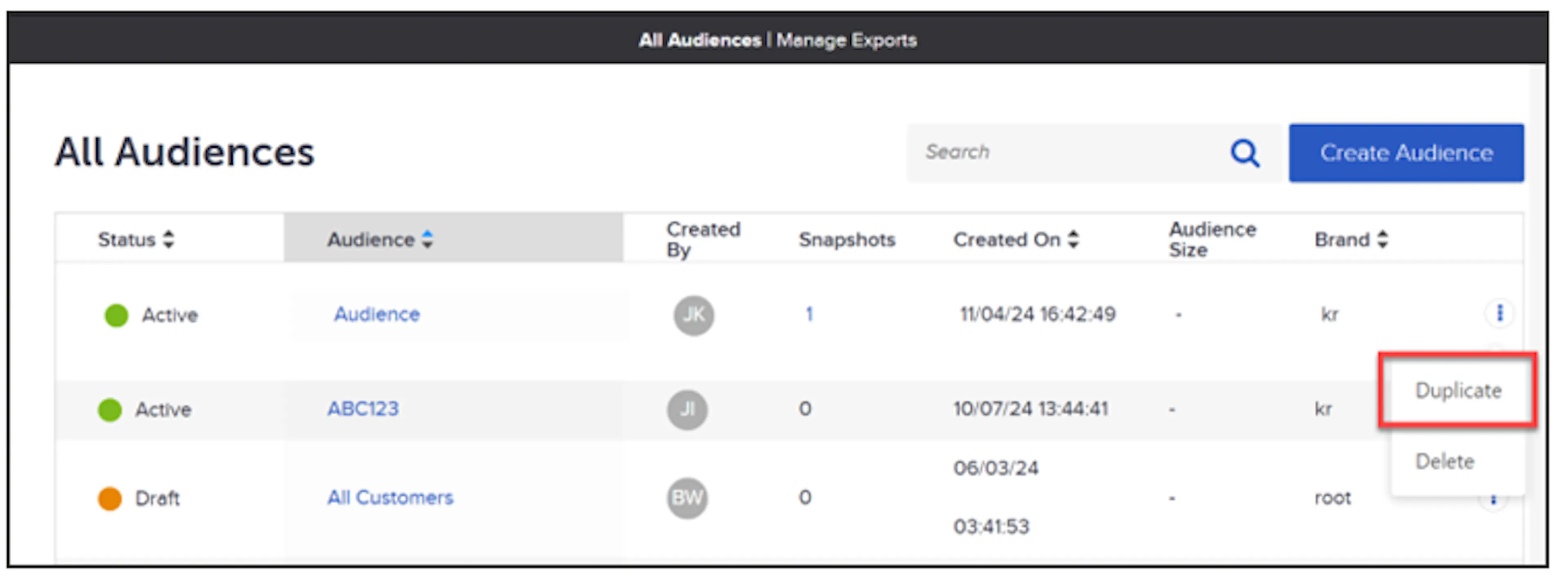
Quick action menu on an audience row with Duplicate selected -
The Duplicate Audience dialog opens, displaying a default name for the duplicate audience. Modify the name if desired, then click Save to create the duplicate audience.
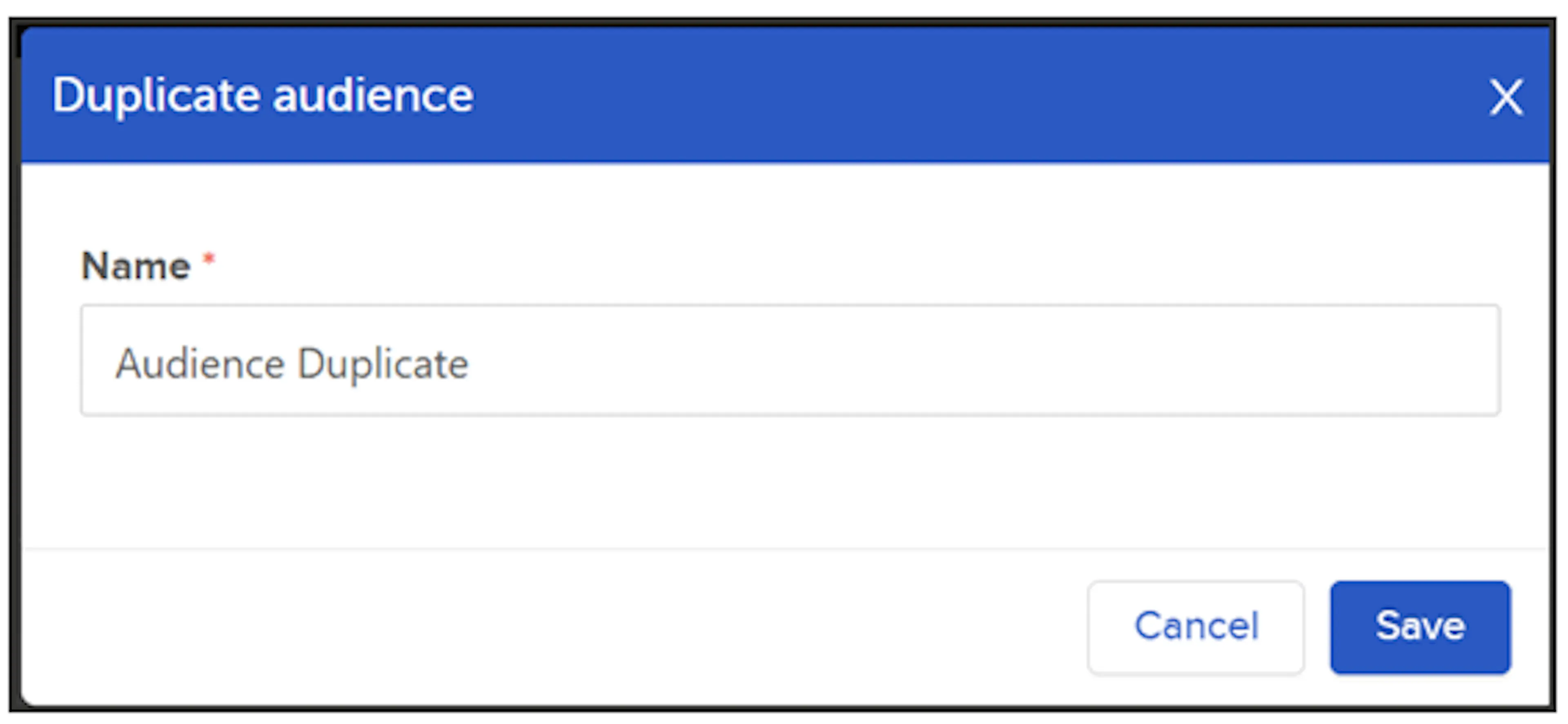
Duplicate Audience dialog showing the default name for the duplicate
The duplicate audience will now display in the All Audiences table in a draft state.
Was this page helpful?