

Configure Customers 2 event streams for sub-tabs on Activity tab
Specify which event stream is displayed in a particular Activity tab sub-tab from the Customers 2 Settings page.
This article provides instructions for specifying which event stream is displayed in a particular Activity Tab sub-tab.
Steps
- On the Admin & Rights 2.0 dashboard, under Module Configurations, click Customers2 Settings. The Customers 2 Settings page opens, displaying the sub-components of the first component listed in the page's navigation panel. If activity/headers is not active, select it.
- From the associated sub-components, or headers, select the header for which you want to configure an event stream.
- If you selected activity_log, the following Component Details text box displays:
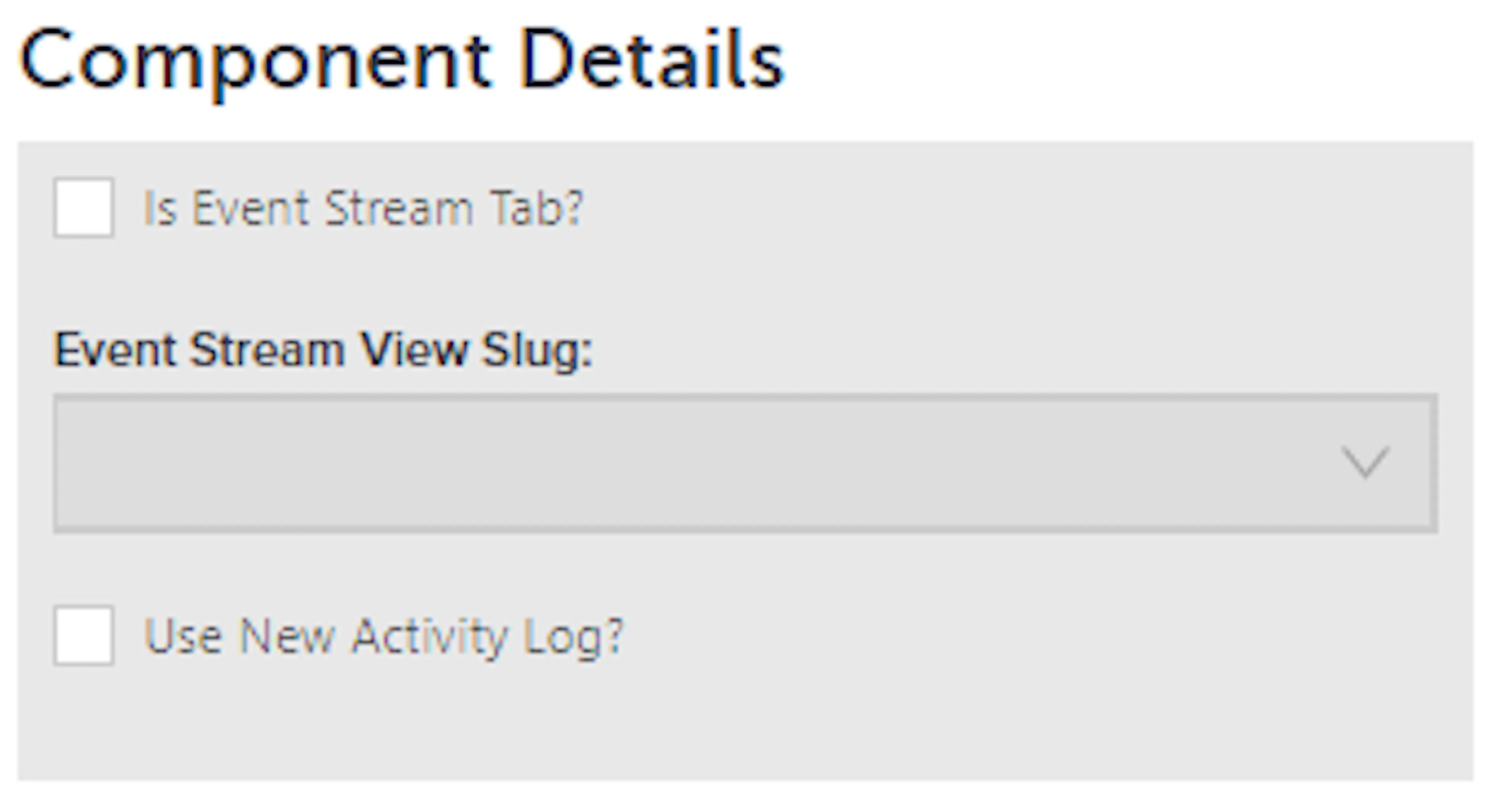
Component Details text box for the activity_log header - Click Is Event Stream Tab? Then pick the slug (identifier) for the stream you want to display from the Event Stream View Slug dropdown.
- Click Use New Activity Log? to activate the event stream.
- If you selected any other sub-component, or header, this Component Details dialog displays:
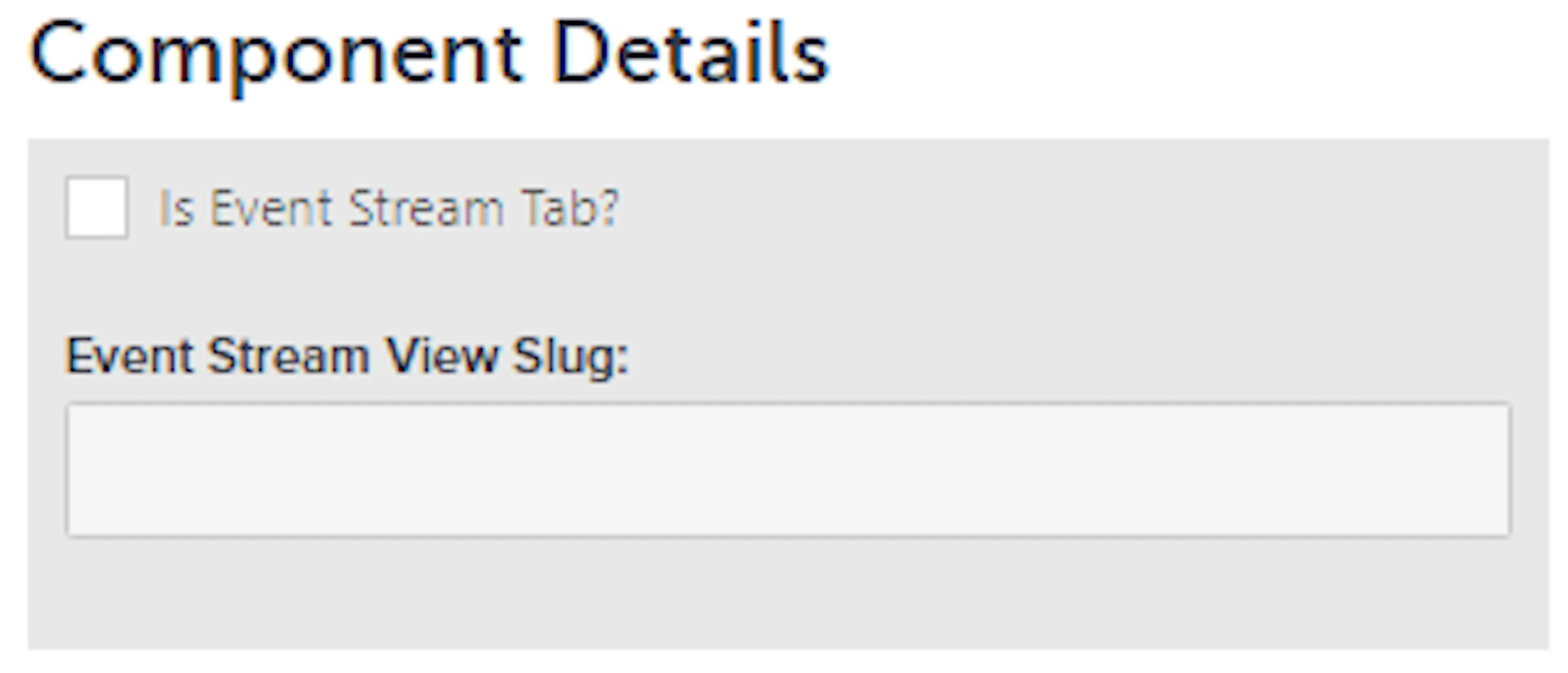
Component Details dialog for other activity headers - Click Is Event Stream Tab? Then pick the slug (identifier) for the steam you want to display from the Event Stream View Slug dropdown.
- If you selected activity_log, the following Component Details text box displays:
- Click Save.
Was this page helpful?