

Configure Customers 2 product recommendations or member profiles
Configure the member profile or product recommendations shown on the Customers 2 main navigation bar for the active customer.
This article provides instructions for configuring a member profile or the product recommendations associated with the active customer - both of which are on the main navigation bar.
Steps
-
On the Admin & Rights 2.0 dashboard, under Module Configurations, click Customers2 Settings. The Customers 2 Settings page opens, displaying the sub-components of the first component listed in the page's navigation panel. If navbar is not active, select it.
-
From the associated sub-components, or headers, select either recommendations or dynamic_profile.
-
If you selected recommendations, the following Component Details text box displays:
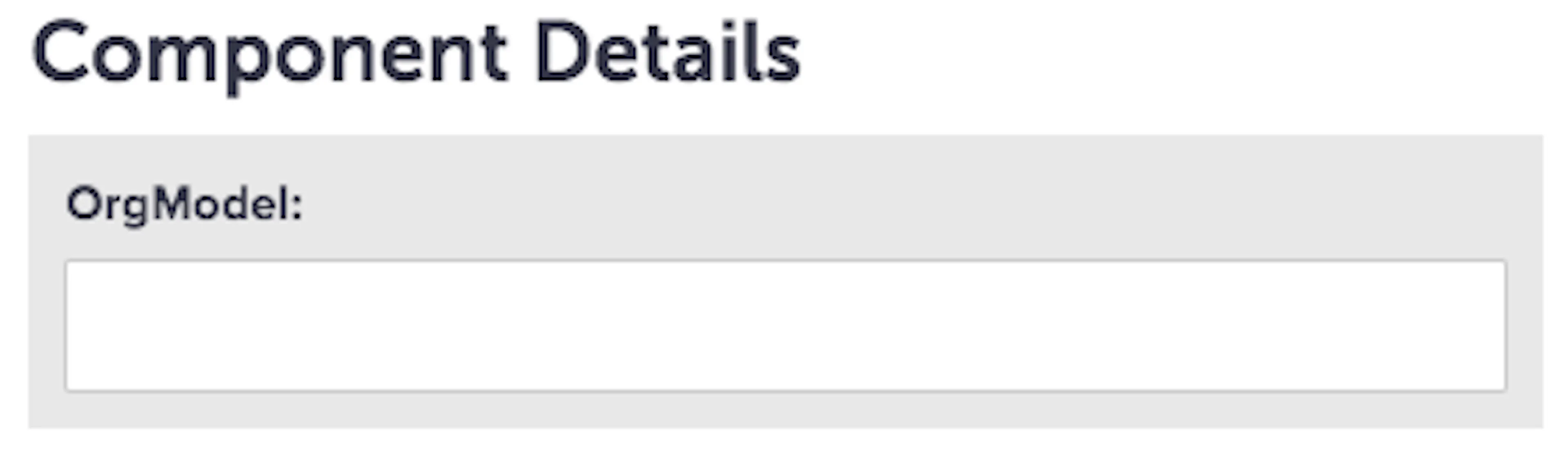
Component Details text box showing the OrgModel field - In the OrgModel field, specify the organization model associated with the product recommendations.
-
If you selected dynamic_profile, which controls the content for the Member Profile, this Component Details dialog displays:
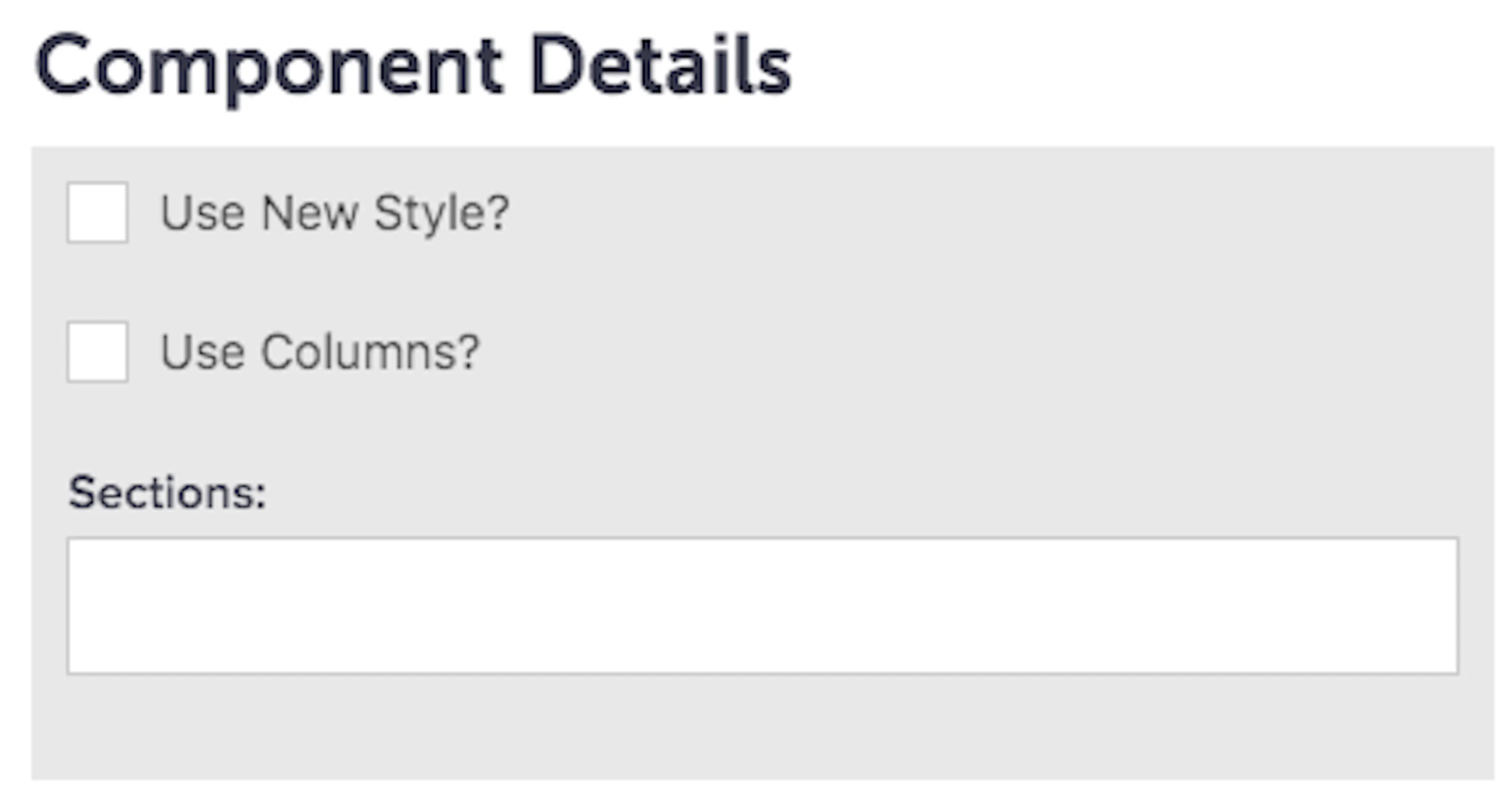
Component Details dialog for the dynamic_profile sub-component - Activate use of this configuration for the member profile by clicking Use New Style.
- If the sections you define are formatted with columns, click Use Columns.
- Specify the HTML you want to use for rendering the dynamic profile's data.
-
-
Click Save.